Show or hide Object version information#
Ensure that versioning is enabled for your bucket; otherwise, the features described in this document cannot be used.
Show object version information.#
First, select and connect to the bucket for which you have enabled bucket versioning.
There are two ways to configure the display of Object version information:
-
Context Menu: In the Object list, right-click to open the menu and selectShow Versions. -
Objects Menu Bar: In theObjectsmenu bar, selectShow Versions.
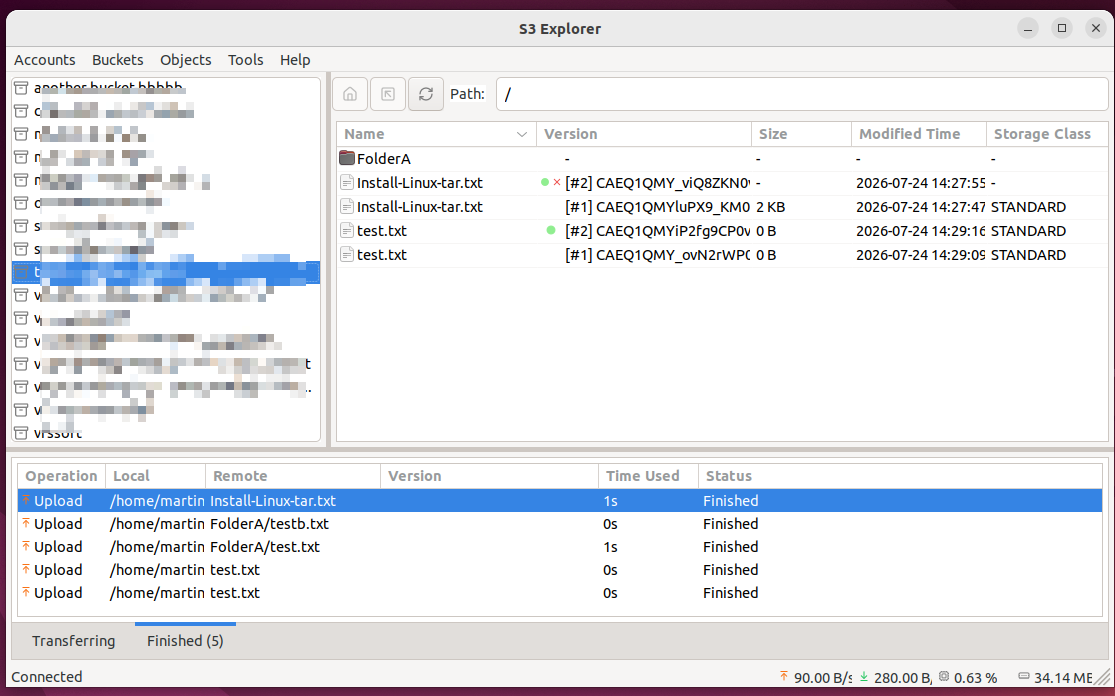
After selecting the corresponding option, the version information will be displayed, as shown below:
Notes:#
- In S3, all "directories" are actually
Prefix, there are no corresponding physical objects, and therefore no version information. - After displaying version information, the Object list will contain Objects with the same name, each corresponding to a different version of that Object.
- The
[#xxx]in theVersioncolumn is not the actual version information; it is a sequence number we added to display the versions more intuitively. A higher sequence number indicates a historical version that is closer to the current version. - The string of characters following
[#xxx]in theVersioncolumn is the actual S3Version Id. - Items in the
Versioncolumn marked with a red "X" represent deleted versions; these correspond to S3Delete Markers. - Items in the
Versioncolumn marked with a green dot indicate the latest version of the object.
Hide object version information.#
The operation to hide object version information is similar to the operation to display object version information.
Once you have enabled Show Versions this menu item changes to Hide Versions; selecting it will switch back to the standard mode.