S3 Explorer connects to Cloudflare R2
Start S3 Explorer
After the program opens normally, Select Accounts -> Add New Account from the menu bar:
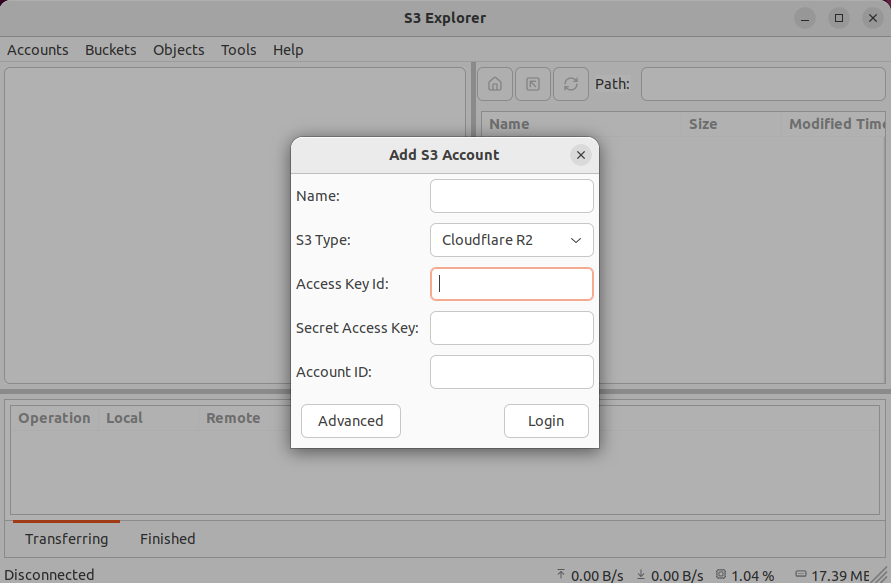
Name
Account Name. You can give your account a name that is easy to remember.
Chinese or pure English characters are supported. The use of special characters is not recommended.
S3 Type
Selecting Cloudflare R2 in this dropdown menu is for connecting to the Cloudflare R2 server.
Access Key ID, Secret Access Key and Account ID
This is the account information you use to access your files on Cloudflare R2.
About Access Key ID, Secret Access Key and Account ID, access Authentication to get more information.
Your account information will be saved to your local configuration file.
To prevent your account information from being leaked, the
Secret Access Keyis stored in encrypted form.We will not upload your configuration information to any server; it only exists on your local computer.
Advanced
No other advanced configuration is required for Cloudflare R2, so you don't need to do any additional configuration here.
Login
Once the above information is configured correctly, click the Login button. After successfully logging in, you can start working with your files.
The connection has been successfully established. You can now begin your usage journey!