S3 Explorer connects to RustFS#
Start S3 Explorer#
After the program opens normally, Select Accounts -> Add New Account from the menu bar:
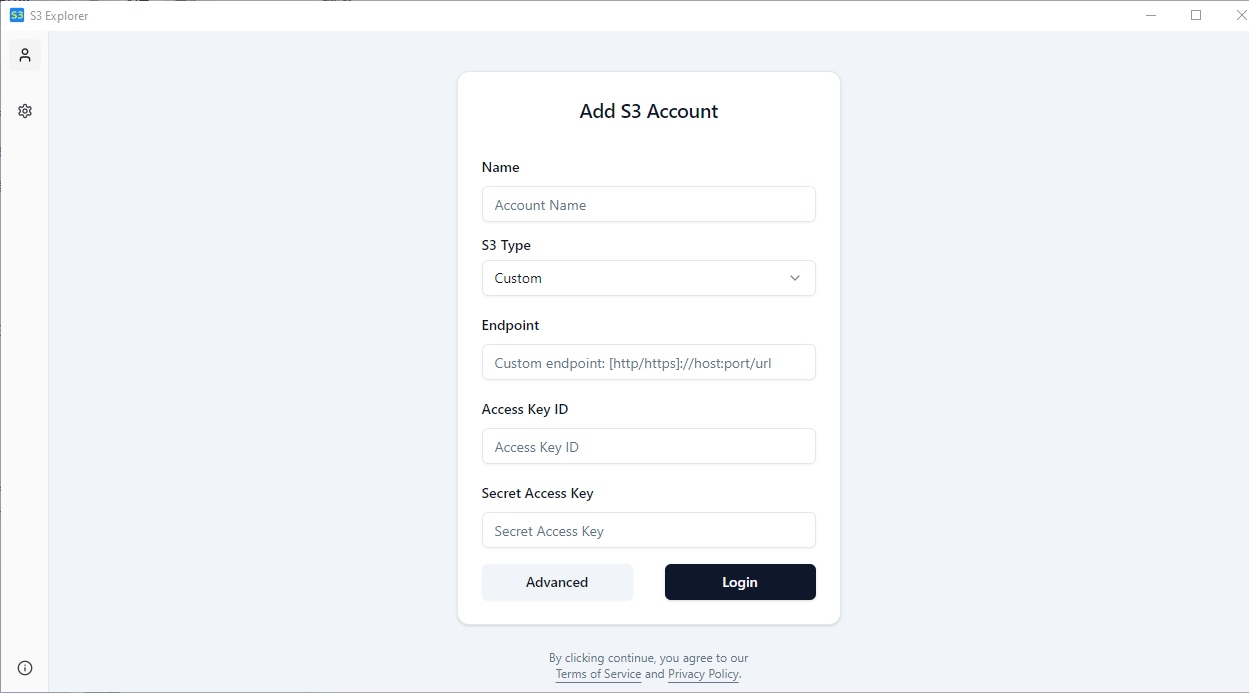
Name#
Account Name. You can give your account a name that is easy to remember.
Chinese or pure English characters are supported. The use of special characters is not recommended.
S3 Type#
Selecting Custom in this dropdown menu is for connecting to the RustFS server.
Endpoint#
Enter your server's IP address or domain name here.
For example, my test RustFS server runs on a machine on the local network, 192.168.1.8, listening on port 9000 (the default port number). So, I would fill in the following here:
192.168.1.8:9000Access Key ID and Secret Access Key#
This is the account information you use to access your files on RustFS.。
For example, my configuration information is as follows:
I used the offical RustFS docker image, and use the default access key and secret key.
The Access Key ID and Secret Access Key are:
Access Key ID: rustfsadminSecret Access Key: rustfsadminYour account information will be saved to your local configuration file.
To prevent your account information from being leaked, the
Secret Access Keyis stored in encrypted form.We will not upload your configuration information to any server; it only exists on your local computer.
Advanced#
For RustFS servers, you need to select the advanced options here based on your specific configuration.
Clicking the Advanced button on the page will bring up the following dialog:

Region#
My RustFS server here does not have any Region configured, so there is no need to fill it in here; just keep the default value.
Use TLS#
My server is not configured with TLS, so I need to disable this configuration.
Virtual Hosting Path#
My server uses IP address in the configuration, so it cannot be accessed using the Virtual Hosting Path method. Therefore, I am disabling this option here.
After completing the above configuration, click Save to save the configuration.
Login#
Once the above information is configured correctly, click the Login button. After successfully logging in, you can start working with your files.
The connection has been successfully established. You can now begin your usage journey!