How to install and run S3 Explorer on Linux#
This article will be based on Ubuntu 22.04.5 LTS version.
If you are using other Linux distributions, the installation steps should be similar.
If you encounter any problems during installation, please feel free to give us feedback. Feedback
Download the latest version of S3 Explorer for Linux#
First, please make sure you have downloaded the latest S3 Explorer Linux installation package.
You can download it from here: S3 Explorer Linux Edition.
Grant the execution permissions#
The downloaded Linux version does not have execution permissions by default, so you need to add them manually.
Via GUI#
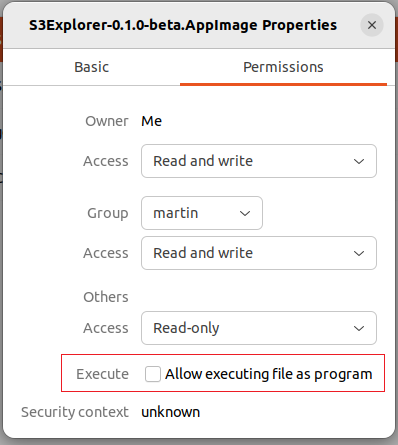
Right-click the .AppImage file -> Properties -> Permissions tab -> Check "Allow executing file as program".
Via command line#
Open a terminal and use the chmod command to add execute permissions to the file:
chmod +x S3Explorer-{version}.AppImageRun the AppImage file#
After completing the above steps, you can run S3Explorer directly.
For the first run, it is recommended to start it in command line mode.
Because your Linux distribution may be missing necessary dependencies, and the graphical interface method often cannot quickly discover these errors!
Via command line#
In the terminal, run:
./S3Explorer-{version}.AppImageFUSE is missing#
Few minimal or server Linux distributions may not have FUSE pre-installed. In this case, you will need to install it manually.
f you get the following error when executing AppImage from the command line, you need to install FUSE:
linux@linux:~$ ./S3Explorer-0.1.0-beta.AppImage dlopen(): error loading libfuse.so.2 AppImages require FUSE to run. You might still be able to extract the contents of this AppImage if you run it with the --appimage-extract option. See https://github.com/AppImage/AppImageKit/wiki/FUSE for more information - On
Debianbased systems:
sudo apt-get install fuse- On
Red Hatbased systems:
sudo yum install fuseVia GUI#
Double-click the .AppImage file to launch the app.