How to Configure and Use MySync for Data Sync Jobs#
Before starting the steps in this document, please configure at least one account for data synchronization. See the following documents:
After configuring an account, make sure you are properly connected to the corresponding Sync job.
Analyze differences between local and remote files#
In the initial state, the differences between the local and remote filesystems have not been analyzed yet, so the file list in the window is empty by default:
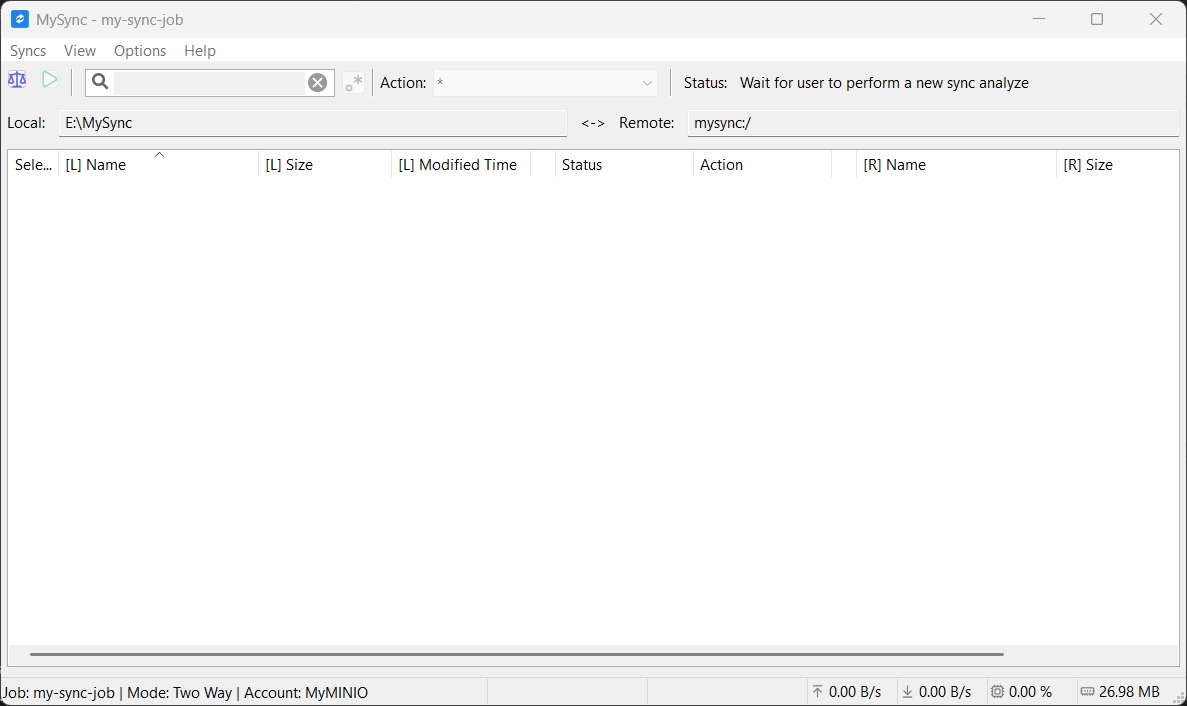
Click the Scale icon button in the upper-left corner to start analyzing file differences.
Analyzing differences requires scanning local and remote files. Depending on the actual number of files, it may take a while. Please be patient.
When the analysis is complete, the results are shown in the file list. For example:
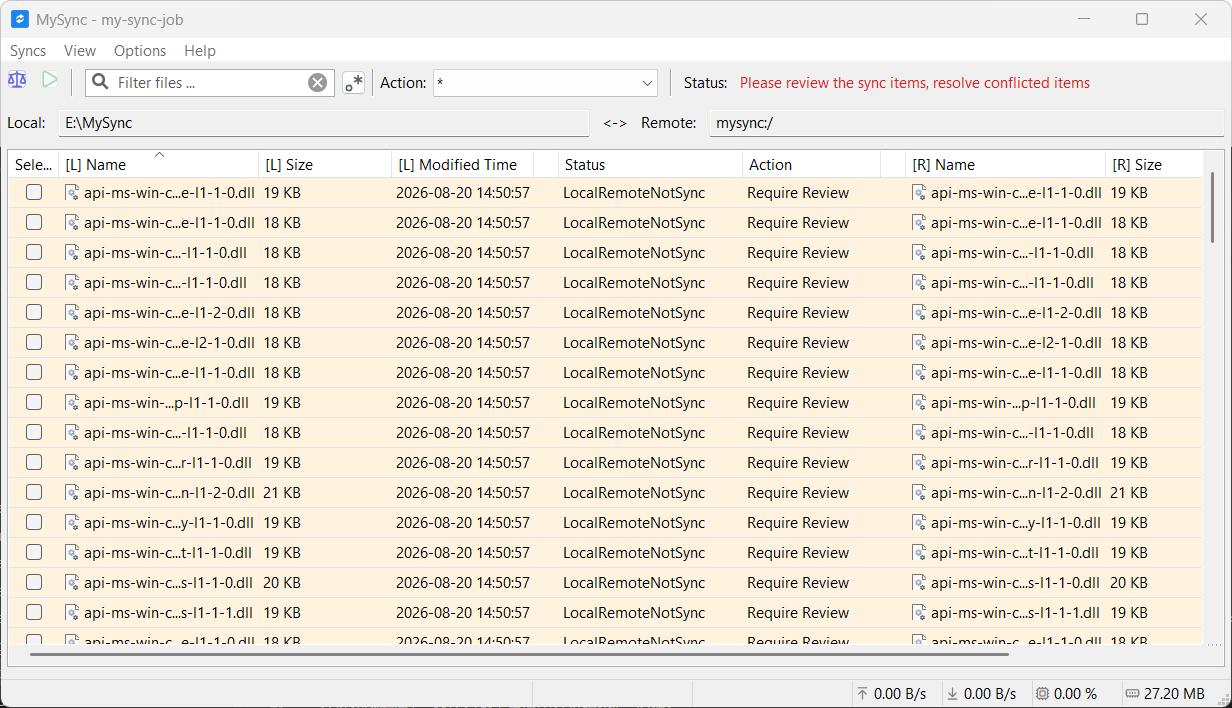
The list shows the differences between local and remote files item by item.
Note the Status shown above: Please review the sync items, resolve conflicted items means there are currently file conflicts and files cannot be synchronized automatically. You need to choose a sync action (Action) for each of them.
Resolve conflicts or choose sync actions#
After analyzing file differences, you need to carefully review the result of each difference and change the default sync action (Action) according to your needs.
If there are files with an Action of Require Review, you must decide which sync action (Action) to use for them; otherwise data synchronization cannot proceed.
At this point, the Sync button is disabled.
For the vast majority of files with differences, MySync automatically chooses the best sync action.
Set sync actions manually#
Select the files you want to set sync actions for using the checkboxes on the far left of the file list. Multi-selection is supported, so you can set the same sync action for multiple files at once.
For example:
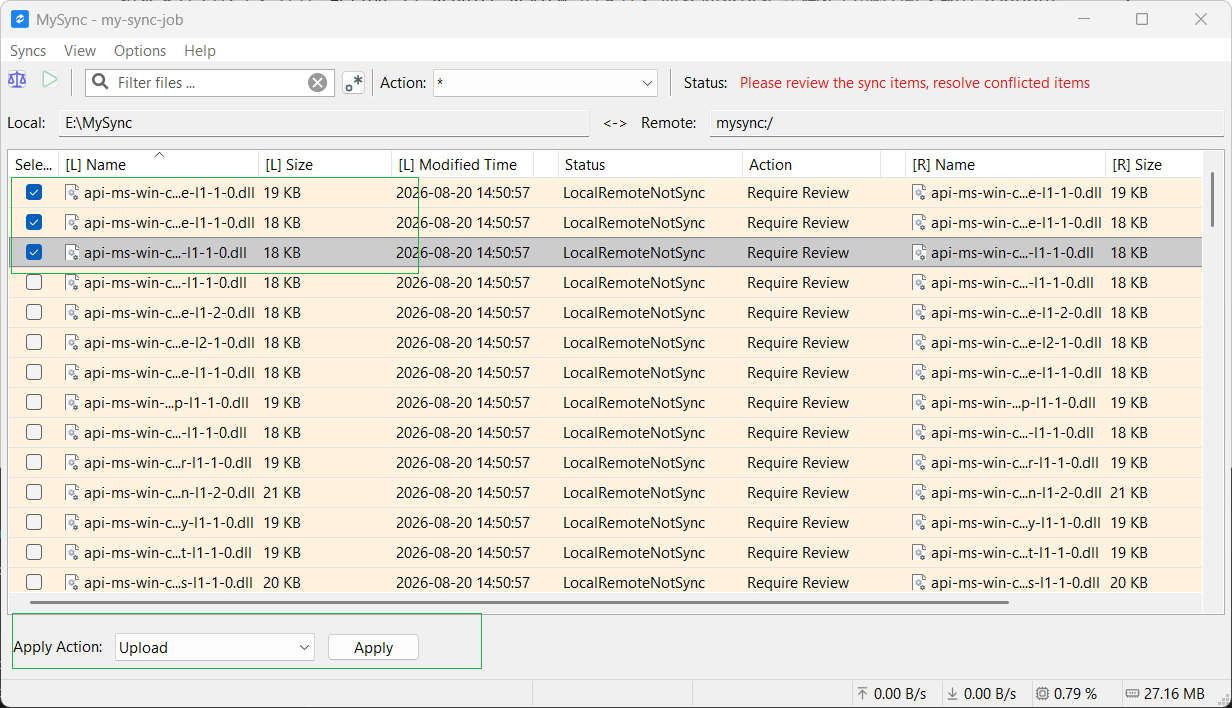
Select the top three files. A drop-down list of available sync actions then appears at the bottom. Choose the sync action you want and click Apply.
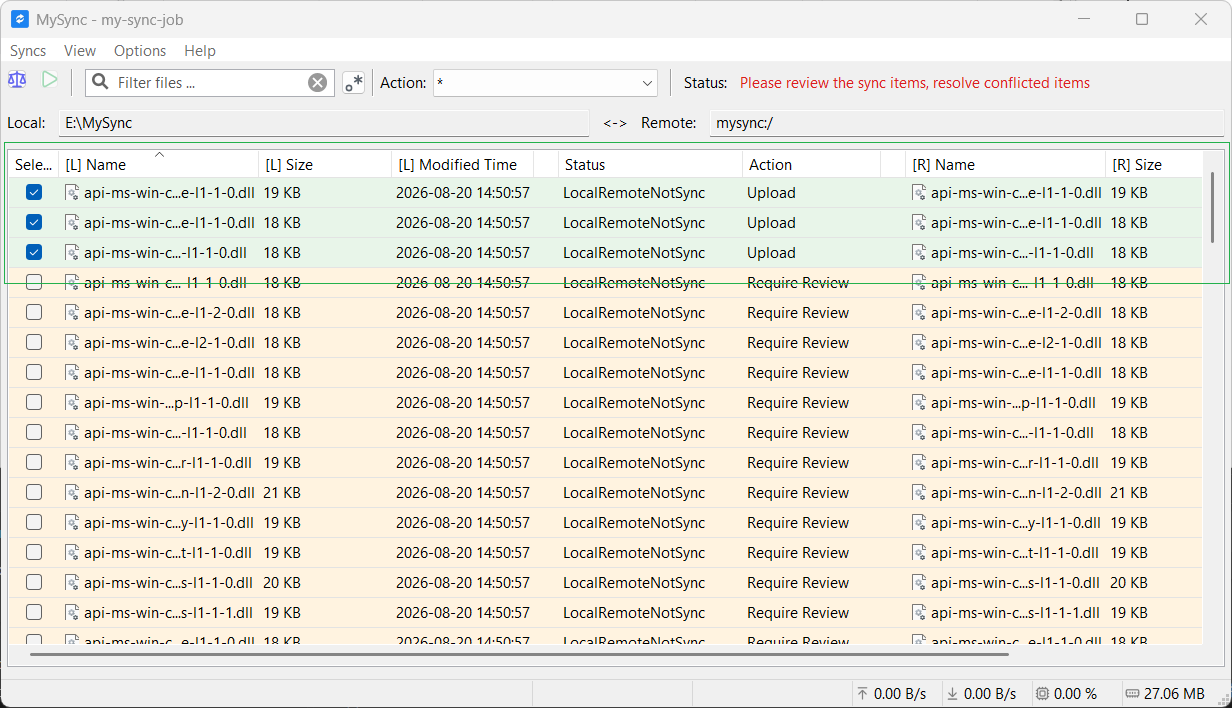
When a file conflict is resolved, the background of the corresponding file turns green, indicating that these files can now be synchronized.
Until you have resolved all files in conflict, you still cannot run the sync.
Filter files#
When you have a large number of files, you may want to use file filtering to display only some of them and modify their sync actions. We provide two options:
- Filter the file list by sync action
- Filter the file list by file name
Filter the file list by sync action#
You can use the Action drop-down list in the top toolbar to show only files with a specific type of sync action.
For example:
Currently our file list contains many Require Review files, and we need to handle them too. In this case, set the Action drop-down list to Require Review.
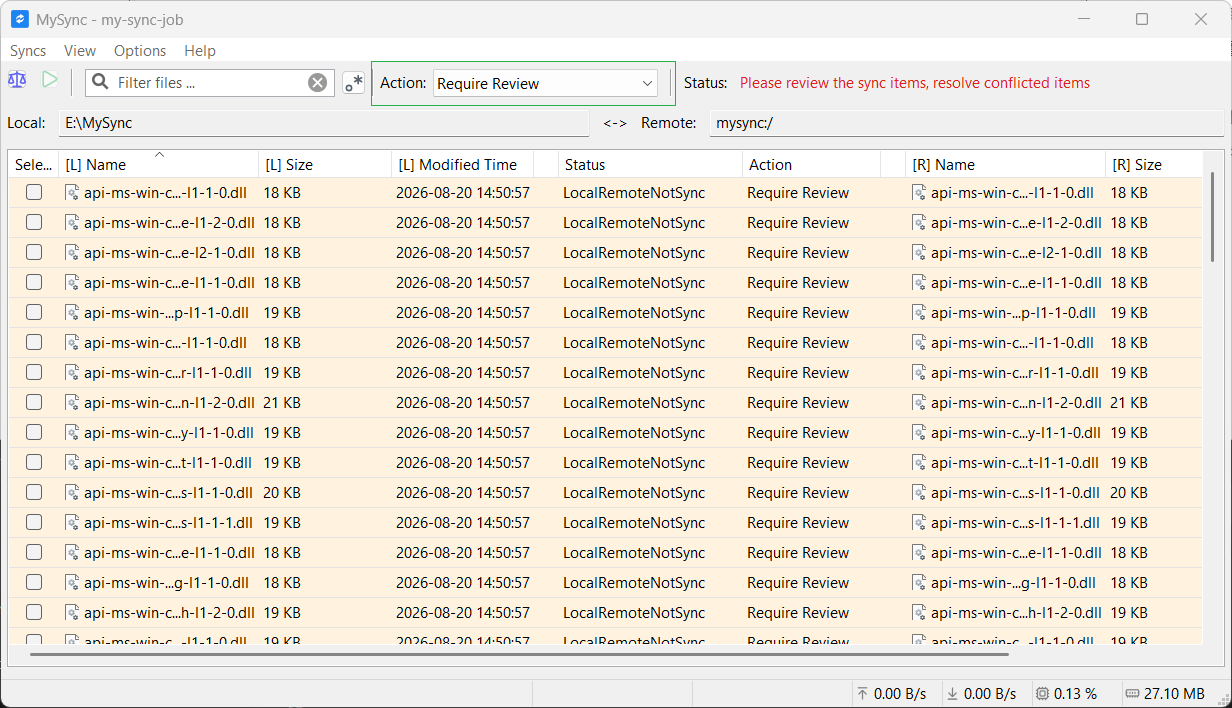
The file list now shows only files whose Action is Require Review, so we can inspect them more clearly.
Filter the file list by file name#
Sometimes you want to see files with a specific file name. In this case, use the Filters search box in the top toolbar to show only files that match the filter.
For example:
If we want to see the status of all api-ms-*.dll files, we can type api-ms- into the Filters search box to filter the files.
After changing the filter text, you must click the search icon in the search box to apply the new filter rule.
By default, this search box only supports basic filter rules. If you need advanced regular expressions, click the button after the search box to enable regex filtering.
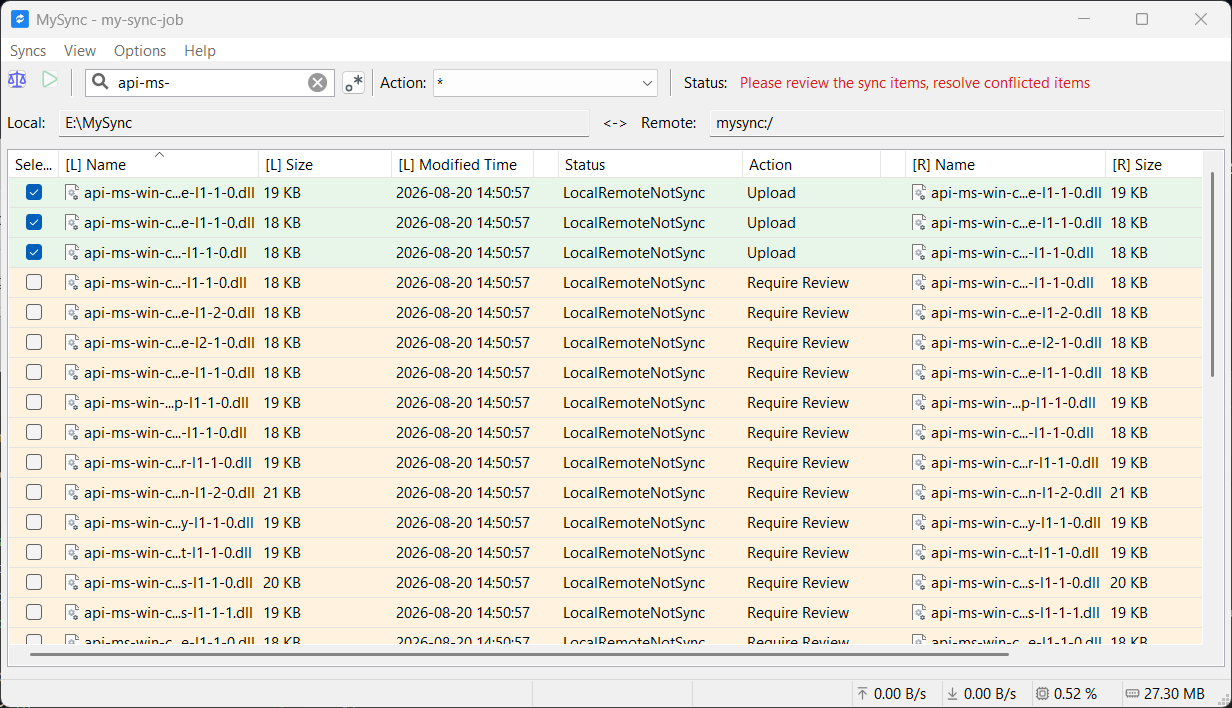
The file list now shows only files that match api-ms-, so we can inspect them more clearly.
Run the data sync job#
Once all files with Require Review have been handled, you can start the data sync job. The Sync button is now enabled.
If it is still disabled, check whether any Require Review files remain.
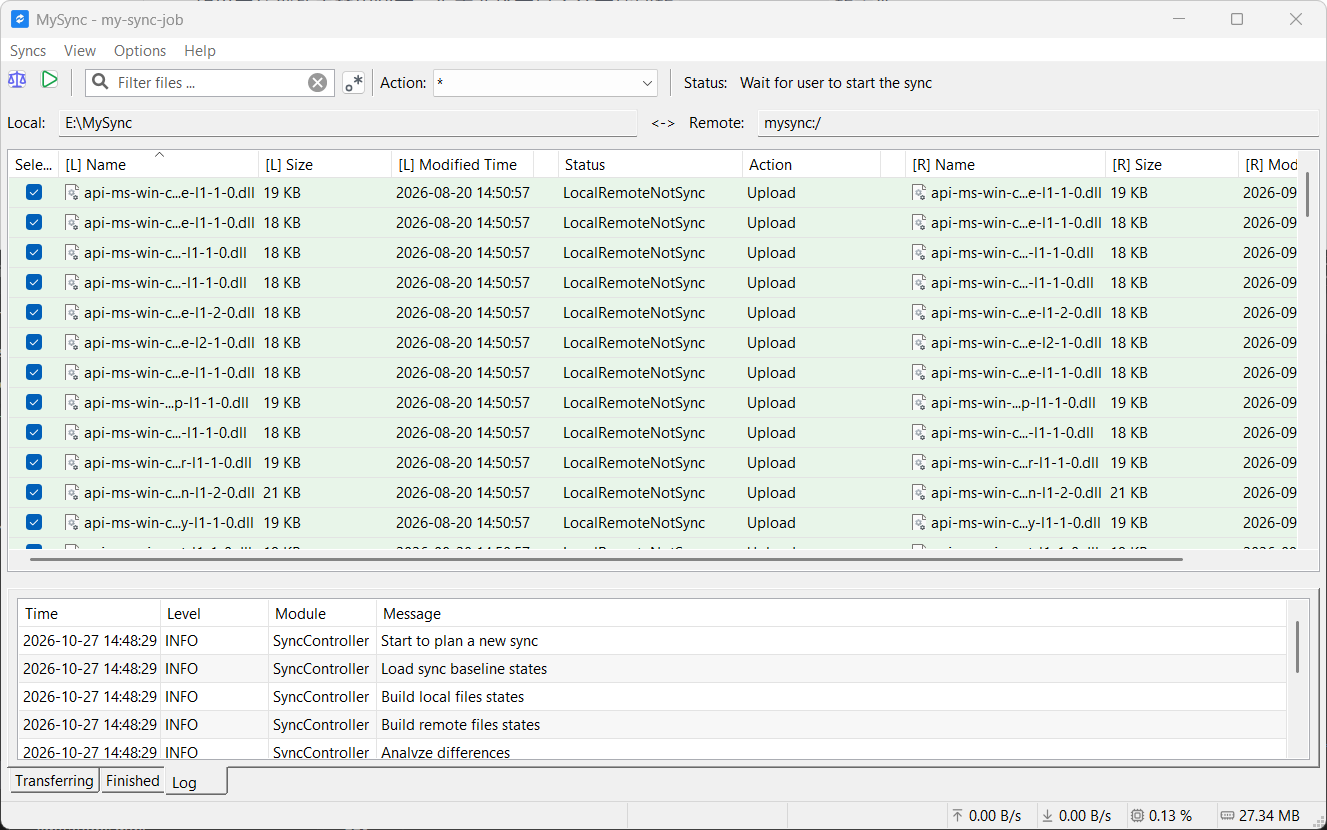
Notes:
- The
Syncbutton is enabled. - The
Statusbecomes:Wait for user to start the sync.
Click the Sync button to start data synchronization.
Important: before starting the sync, make sure you have chosen the correct sync action for every file to be synchronized. Once a sync action is executed, it cannot be undone.
Synchronization time depends on the number and size of the files to be synchronized. It may take a long time, so please be patient.
During the process, you can track the sync job progress via
Transferring,Finished, andLogat the bottom.
Then wait patiently for the sync to finish.
Sync completed#
When the sync progress bar disappears from the top toolbar and Status becomes Wait for user to perform a new sync analyze, the current sync job has completed.
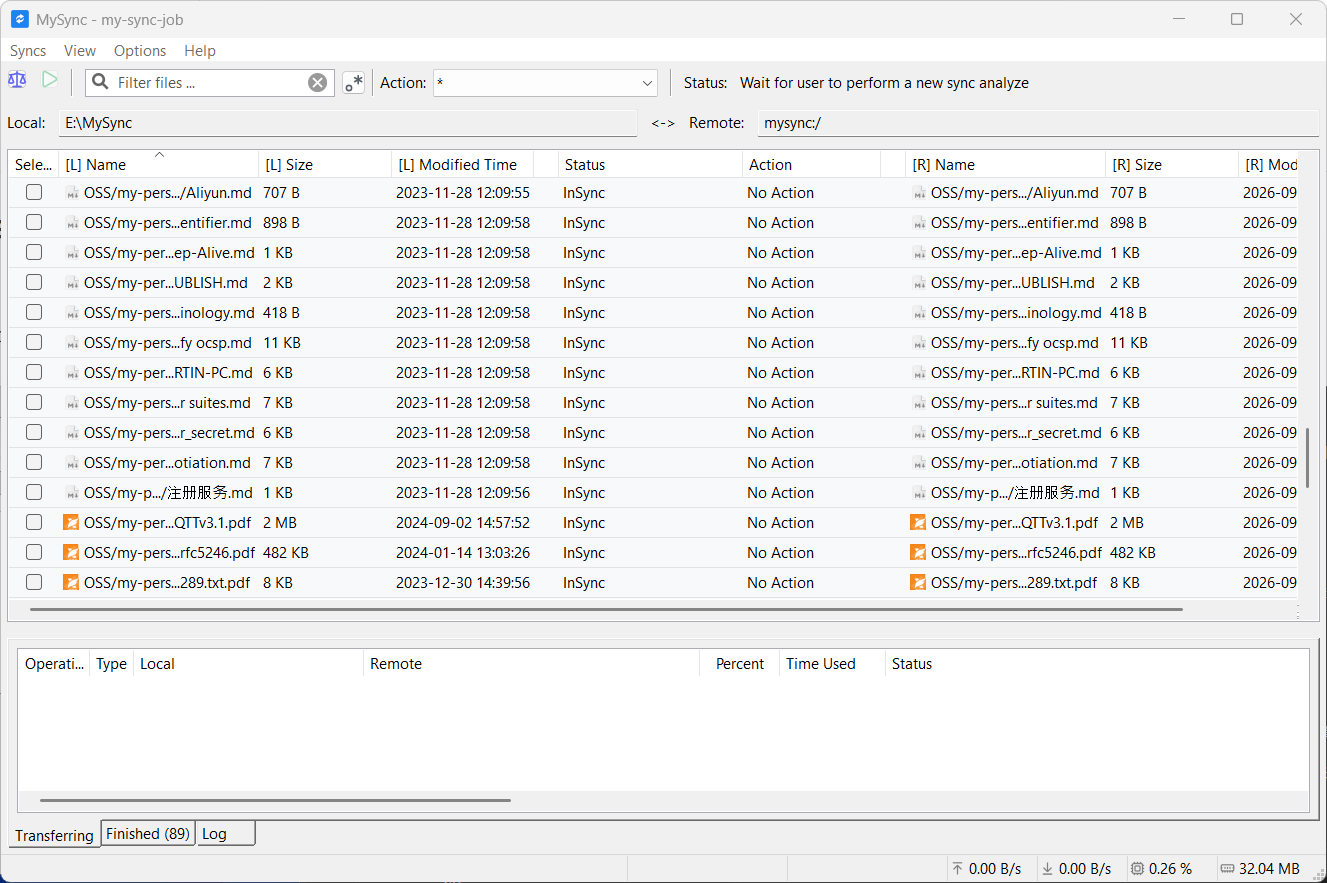
At this point, you have completed a data sync.