Synchronize Data with Data on S3 Servers#
MySync can connect to mainstream S3 servers and synchronize data between your local filesystem and a remote S3 server.
This document uses Windows as the example platform. The steps are the same on other platforms.
The configuration steps are as follows:
Start MySync#
First, launch the MySync application and go to the main window.
From the menu bar, choose Syncs -> New Sync to open the account configuration window.
Open the Sync configuration window#
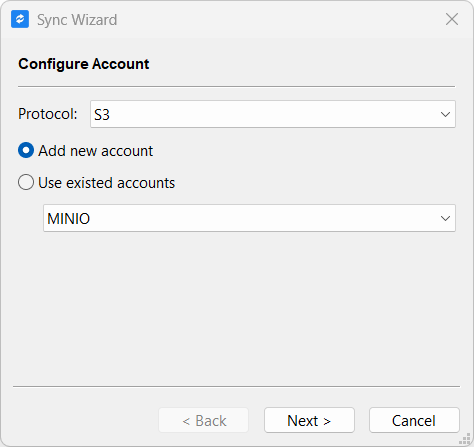
Protocol: selectS3here to connect to an S3-compatible server.Add new account: create a new account for the Sync job you are creating.Use existed accounts: use an existing account and create another Sync job for it.
You can create multiple Sync jobs under the same account.
Here we use Add new account as an example.
Click Next to open the account details page.
Configure the S3 account#
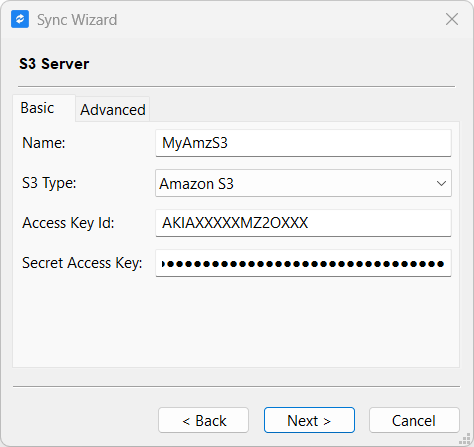
Name: give your account an easy-to-remember name.S3 Type: a set of mainstream S3 providers is provided here. Choose the one that matches the server you need to connect to. If you need to connect to a self-hosted MINIO, or your server is not in the preset list, selectCustom.Access Key Id: the Access Key Id assigned to you by your administrator.Secret Access Key: the Secret Access Key corresponding to the Access Key Id assigned to you by your administrator.
Your account information is saved to a local configuration file.
To prevent your account information from leaking, the
Secret Access Keyis encrypted before it is saved.We do not upload your configuration to any server; it only exists on your local computer.
Configure a Custom type S3 account#
If your server is not in the preset list of S3 Type, you need to use the Custom type.
Here we use a self-hosted MINIO server as an example. Other servers are configured similarly.
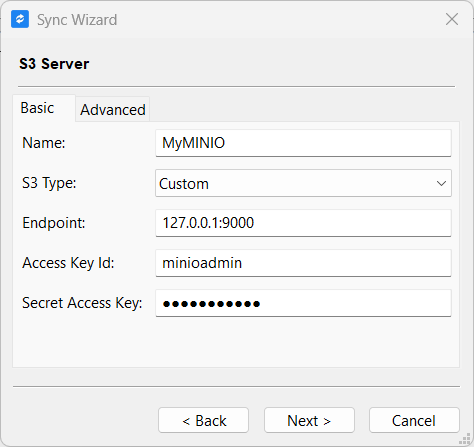
Endpoint: the network address of your S3 server. It can be an IP address or a domain name. If it is not the standard80/443port, the port must be specified explicitly.
Usually, a Custom type S3 server requires more advanced configuration. Select the Advanced page to configure it.
Advanced configuration#
Here we continue to use the MINIO above as an example.
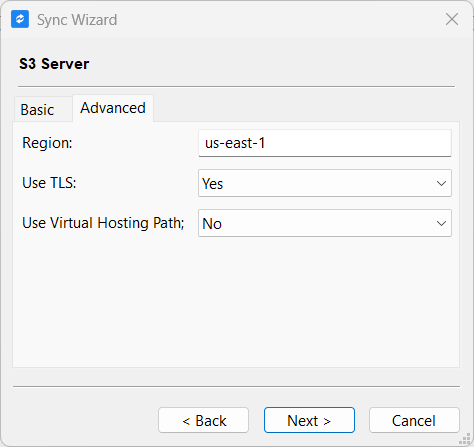
-
Region:For a self-hosted MINIO, we have not configured a Region, or there is no Region, so there is no need to change it here. Keep the default value
us-east-1.If you are configuring a mainstream S3 server, or your server has a Region configured, you can change it here according to your server's configuration.
-
Use TLS:For a self-hosted MINIO, whether TLS is enabled also depends on your configuration. My MINIO has TLS enabled, so I need to enable this option explicitly (as shown in the figure above).
If you are configuring a mainstream S3 server, or your server has TLS configured, you can change it here according to your server's configuration.
Even for a self-hosted S3 server, we strongly recommend that you enable TLS on your server. This helps protect your data so that it is not exposed while being transferred over the network.
-
Use Virtual Hosting Path:For a self-hosted MINIO, this option is usually not configured. My MINIO does not have this option enabled, so I need to disable it explicitly (as shown in the figure above).
If you are configuring a mainstream S3 server, or your server requires this option, you can change it here according to your server's configuration.
After configuring the options above, click Next to go to the Sync job configuration page.
Sync job configuration page#
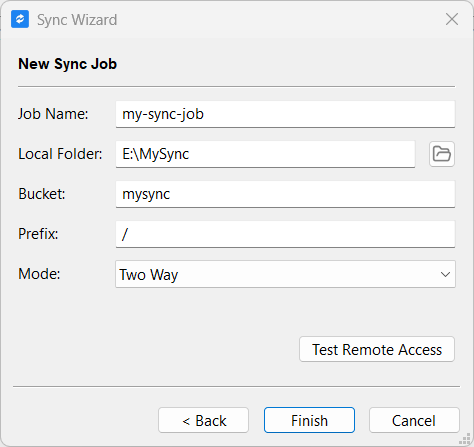
Job Name: give your Sync job an easy-to-remember name.Local Folder: the local directory containing the files you want to synchronize.Bucket: the name of the Bucket on the S3 server that you want to synchronize with.Prefix: the Prefix of the files on the S3 server that you want to synchronize (relative to the currently configured Bucket).Mode: the mode in which the sync job runs. Details
After configuring the information above correctly, click the Test Remote Access button to verify that your configuration is correct.
Verify the account configuration#
After configuring the information above correctly, click the Test Remote Access button to verify that your configuration is correct.
If your server is your own server (like the MINIO I use here), testing the account connection may trigger a problem where the server certificate is not trusted by the client, because you have not correctly configured a server certificate signed by a trusted CA.
MySync will show the following dialog:
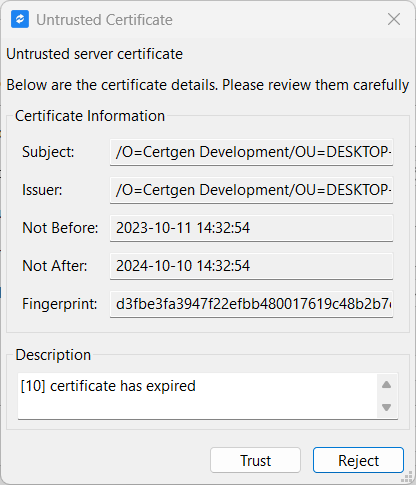
Carefully check the certificate information and make sure it matches the certificate information configured on your server before deciding whether to accept this certificate. You may be in a scenario where you are being attacked by malicious parties.
Here, I have confirmed that the certificate information matches the certificate I configured, so I select Trust.
After choosing to trust this certificate, click Test Remote Access again.
If everything is configured correctly, a success message will be reported, as shown below:
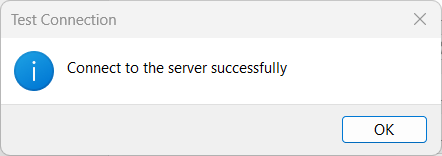
Then click OK.
Finally, select the Finish button to save your configuration.
Use the Sync job#
After closing the Sync configuration window, choose Syncs -> Connect To -> {SyncJobName} from the menu bar again.
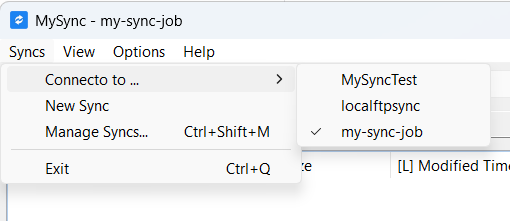
Select the name of the Sync job you want to connect to and connect to it.
Once selected, the status bar shows the Sync job you are currently connected to, indicating a successful connection.