How to Get Debug Logs in S3 Explorer#
This document explains how to obtain Debug logs when you run into a problem while using S3 Explorer, or when you want to report an issue to us, so that we can quickly locate the problem and fix it in time.
This document uses S3 Explorer on Windows as an example. The steps are the same on other platforms.
The steps to configure S3 Explorer to output Debug level logs are as follows:
Launch S3 Explorer#
Open S3 Explorer and go to the main window. Then choose Tools -> Options from the menu bar.
Open the Options window#
In the Options window, select the Logs tab. The window looks like this:
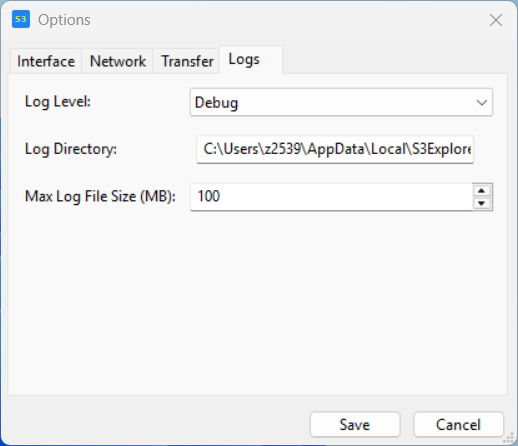
Change
Log LeveltoDebug.
Log Directory: the default output directory for log files. A default value is already provided. You can change it to another directory or leave it unchanged.
Then click Save to save your changes.
Note: it is not recommended to set the log level to Debug for everyday use.
The Debug level outputs a large amount of logs, which degrades the performance of S3 Explorer. Debug should only be used when troubleshooting product issues.
Perform file operations to reproduce the issue#
Debug level logging is now enabled. You can start performing the operations that reproduce the problem you encountered.
After reproducing the issue, simply close S3 Explorer.
View the logs#
Log files are written to the directory specified in Log Directory. You can find the directory under Options -> Logs -> Log Directory.
The default directory is:
C:\Users\{UserName}\AppData\Local\s3explorer\LogsOpen the log directory. It contains the logs generated during the most recent runs of S3 Explorer. Log files are named by date.
2026-10-082026-10-192026-10-252026-10-27This document was written on 2026/10/27, so the file 2026-10-27 is the most recent log file.
When a log grows too large, it may be split into multiple files. The file names still use the same date as the prefix.
Send the logs to us#
You can send us all the log files in the log directory, or only the most recent files, to help us locate the problem you encountered.
If the files are too large, we recommend compressing them before sending.